Umans AI - Pay-As-You-Go
Pay for what you use, on your AWS bill. No commitment.
This is the guide for the listing of that name on AWS Marketplace. Models, tools and the API work as in the User Guide.
Set up
Five steps, all started from AWS.
1Subscribe on AWS Marketplace
Open the listing with the AWS account that will pay, and subscribe. There is nothing to pay up front.
2Click Set up your account
AWS shows this button once you are subscribed. It brings you to Umans, where your registration is kept for 48 hours.
3Sign in or create your account
Use your work email.
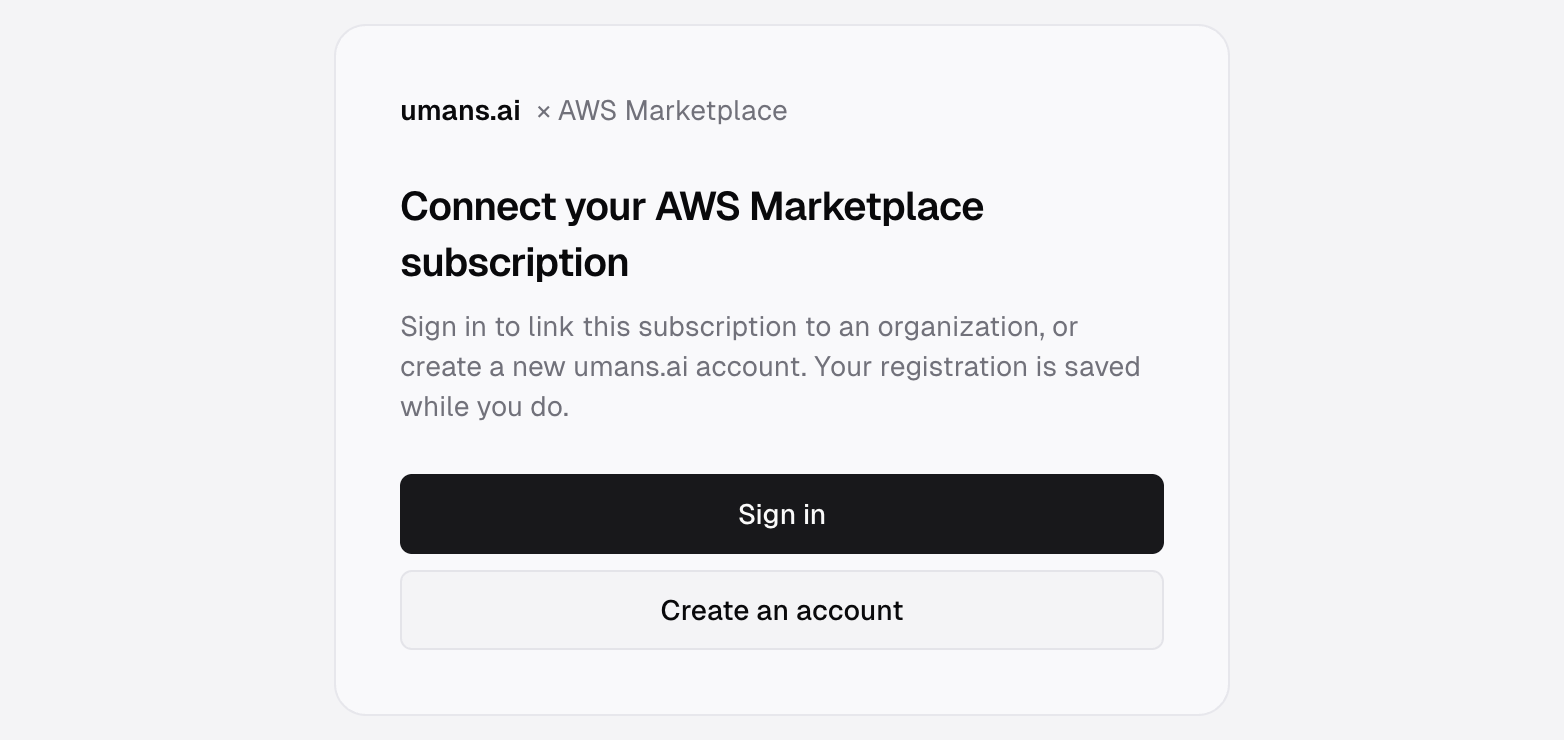
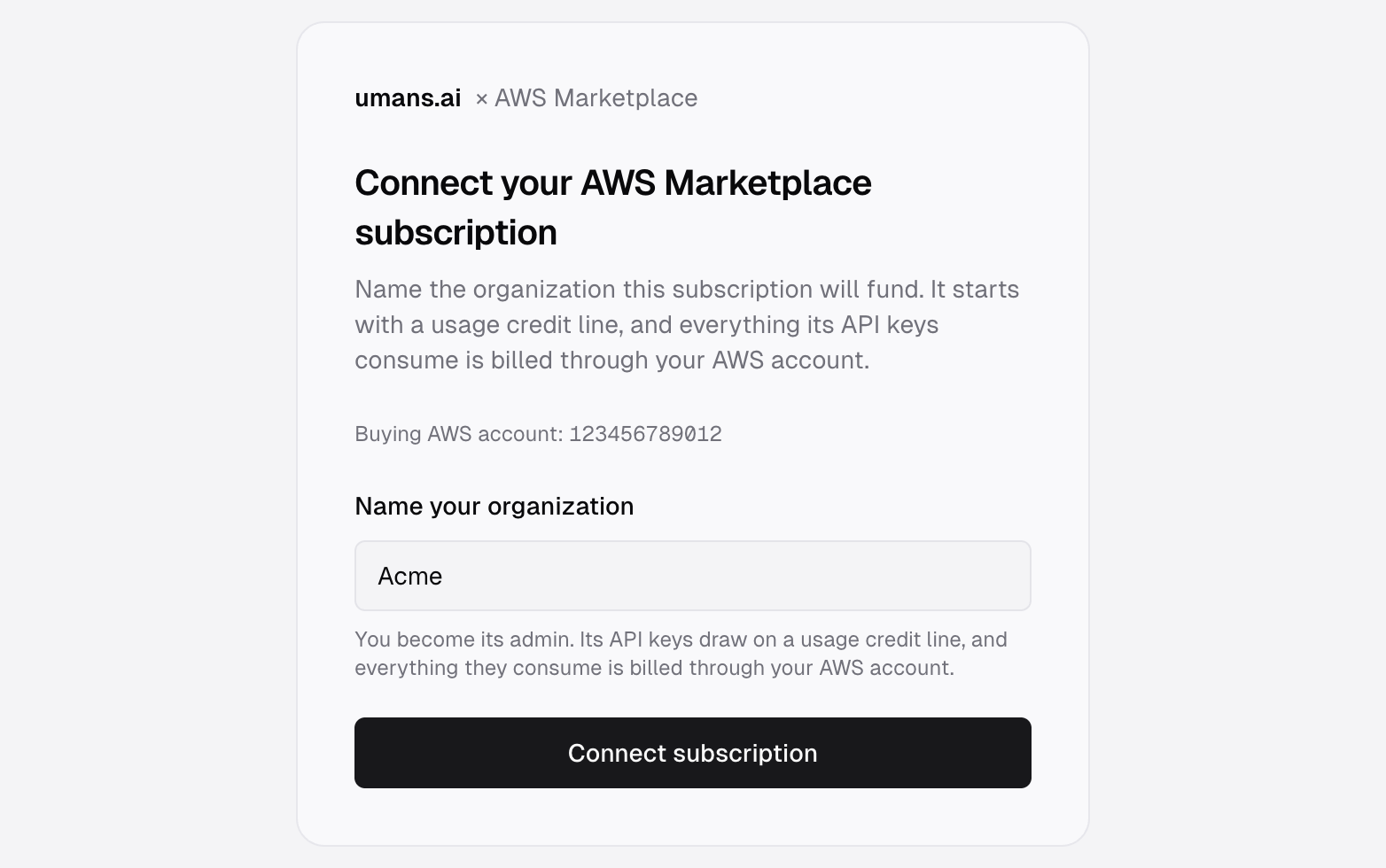
4Name your organization
Give your organization a name and connect. You become its admin. A subscription billed by usage always gets an organization of its own.
5Create a key and start
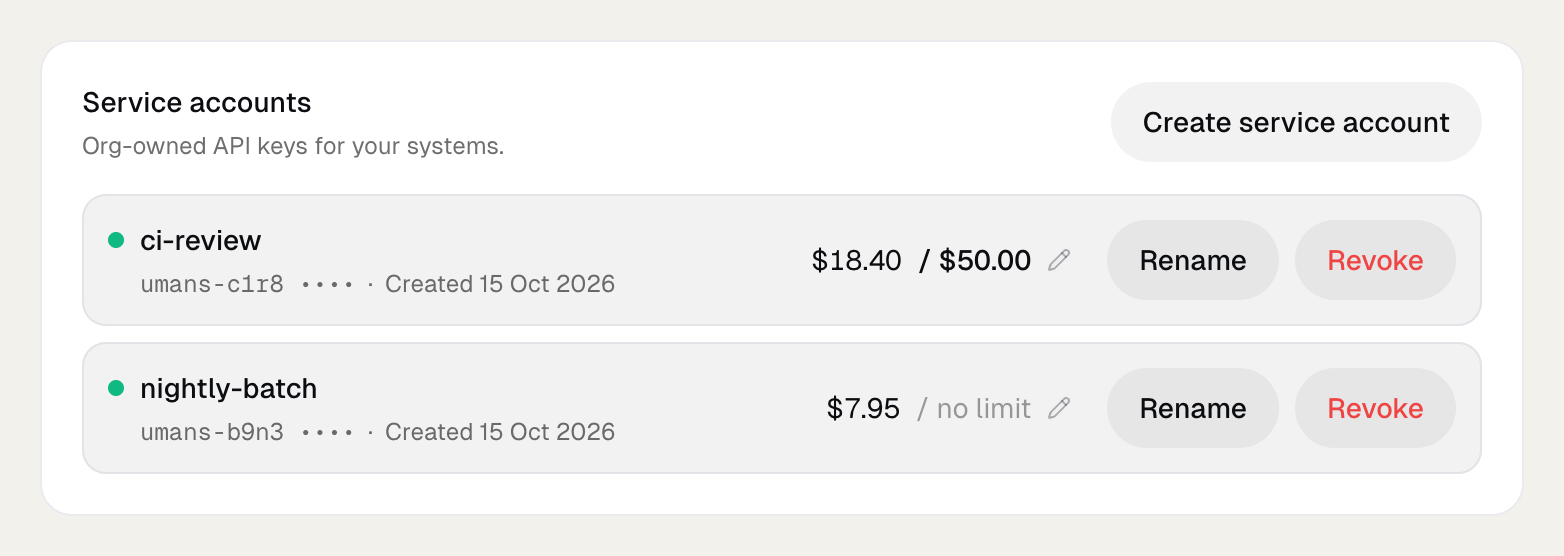
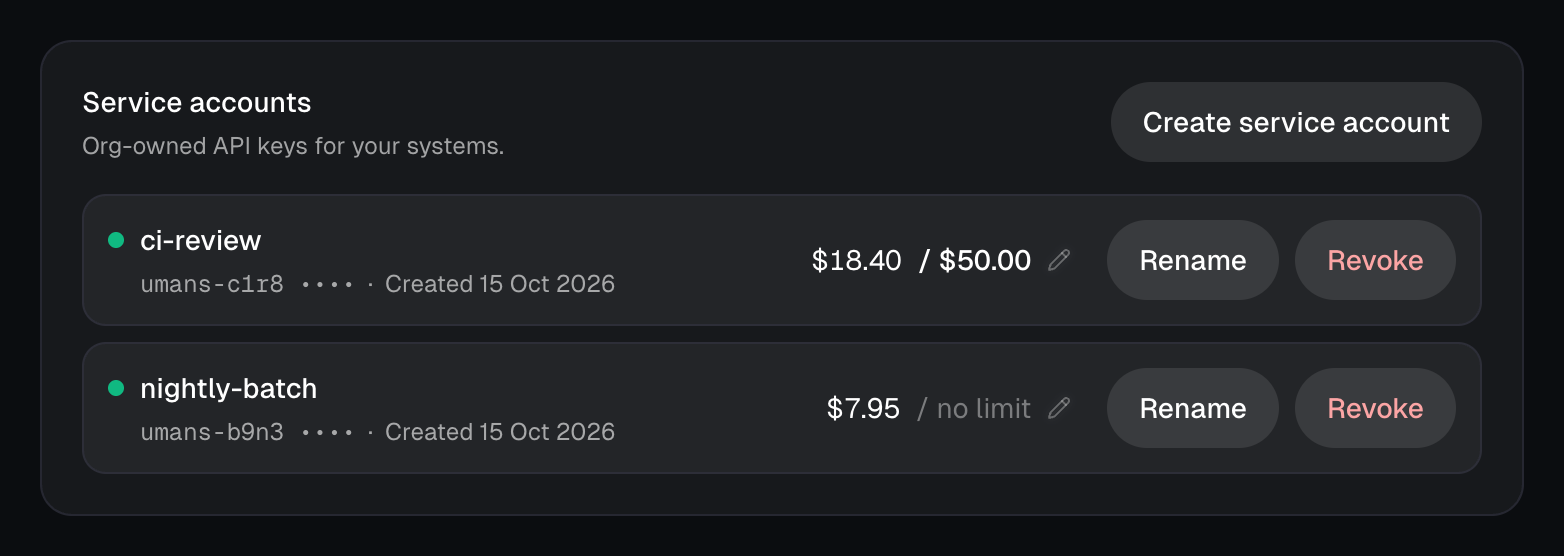
Open the wallet and create a service account. Copy its key, then set up your tool with it as in Manual Configuration. Each service account can have its own monthly limit, set on its row.
How you are billed
- Per token. Each request is priced at the public rates.
- On your AWS bill. Usage is reported to AWS every hour and shows as AI Inference Credits, 1 credit for each dollar.
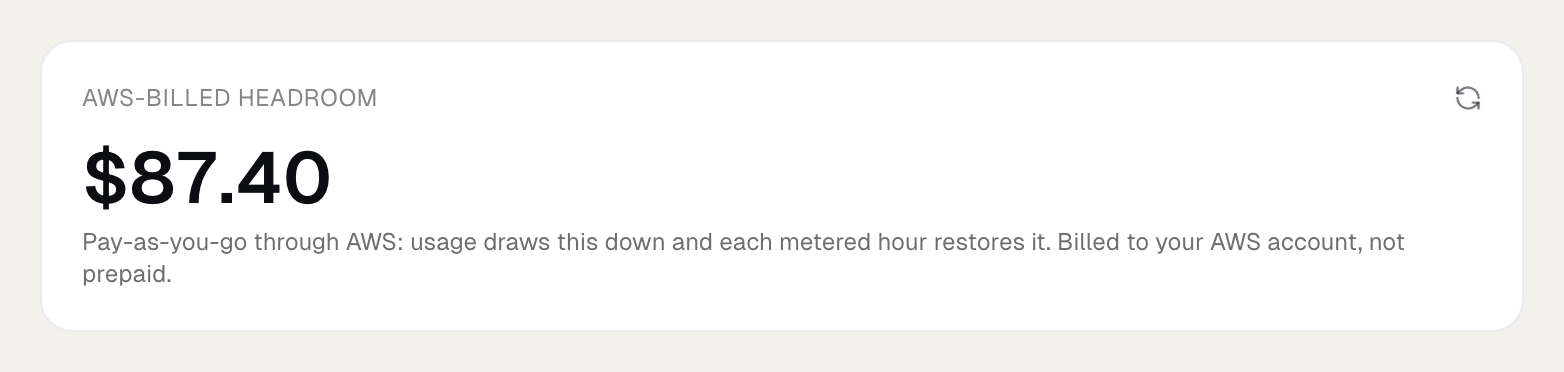
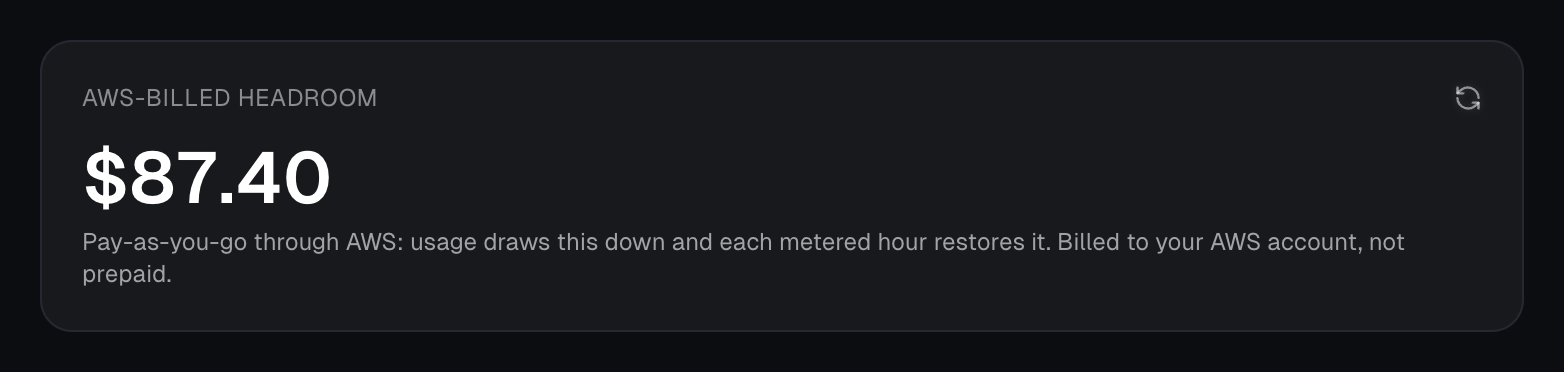
- The wallet shows a headroom, not a balance. Usage draws it down and each hourly report restores it. If usage outruns it within the hour, requests stop until the next report. Need a higher one? Write to contact@umans.ai.
Your team
An organization created from AWS starts with service accounts: keys for your tools and automations.
To give each teammate their own key and a monthly limit, write to contact@umans.ai. We switch on team access for your organization, then you follow Set up your team from step 4. Their usage goes on the same AWS bill.

